A real client book with WhatsApp built in — and every design filed under the client it belongs to.

Job Files: local and server side by side, with right-click actions on any file.
The artwork's in Downloads. The good version is in WhatsApp. The one you actually printed is on the other machine. Somewhere there's a folder called final_FINAL_v3.
PrintOS gives every client one folder, and shows you what's in it — artwork, mockups, and the design subfolders (01, 02, 03…) each job lives in. Thumbnails for everything, plus the ZIPs and PDFs you send suppliers, so the print-ready file is a click away instead of a search.
See what's on this machine and what's on your server in the same window. Sync a folder up or down, or right-click one file and send just that. Copy the folder path for a supplier, check a file's real print size, or open it in whatever program you like.
Contact, shipping and payment details for everyone, searchable, with WhatsApp one click away. It syncs two-way with your own SQL database and keeps a local SQLite copy, so the list is on every machine in the shop — and still there when the internet isn't.
Copy, move, rename and delete from a right-click, with PrintOS naming files from the print itself — position, side and real size, like Front-top-22x18.5cm.png. Rename it later and it reads the old name back in, so you're not retyping what the file already says. In six months you'll still know what it is without opening it.
Pick the client once and the whole suite follows.
Message a client with your template already filled in.
See what's on your machine and what's online, together.
Auto-name from print position, side, width and height.
File designs into folders you invent as you go.
SQL online, SQLite offline, with an Auto Sync you control.
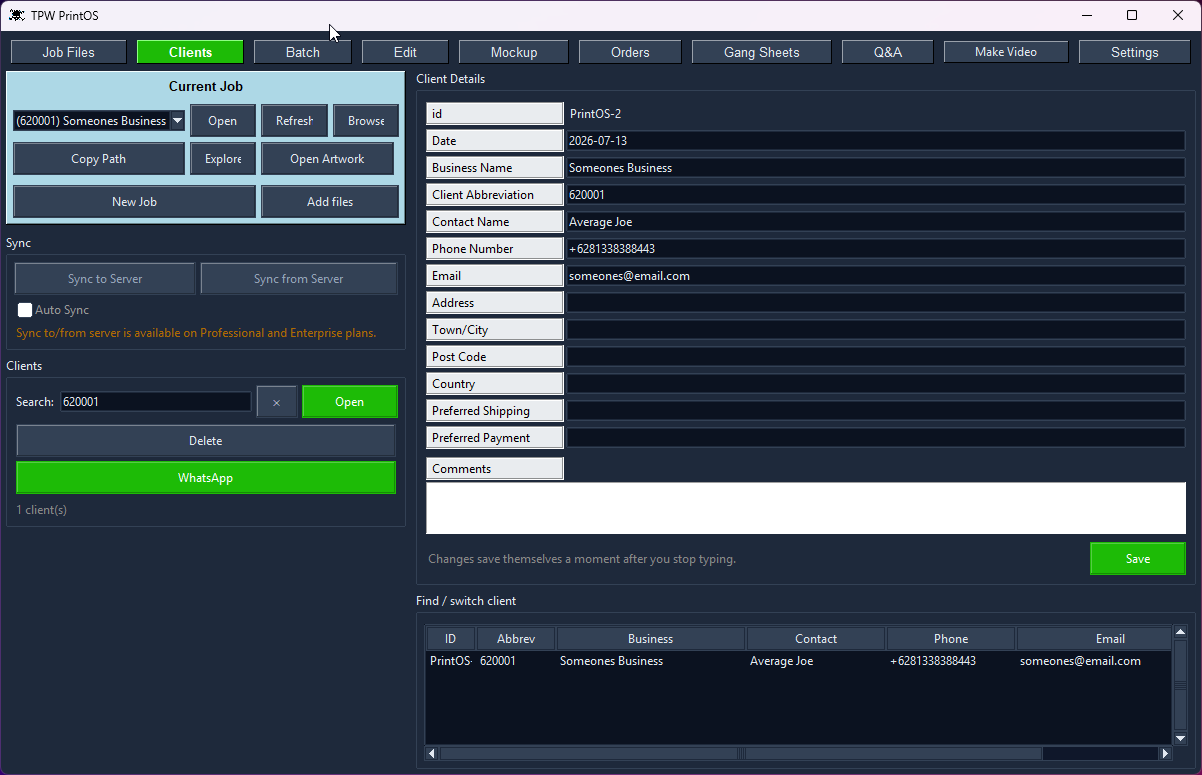
Contact, shipping and payment details, with search and quick switch.
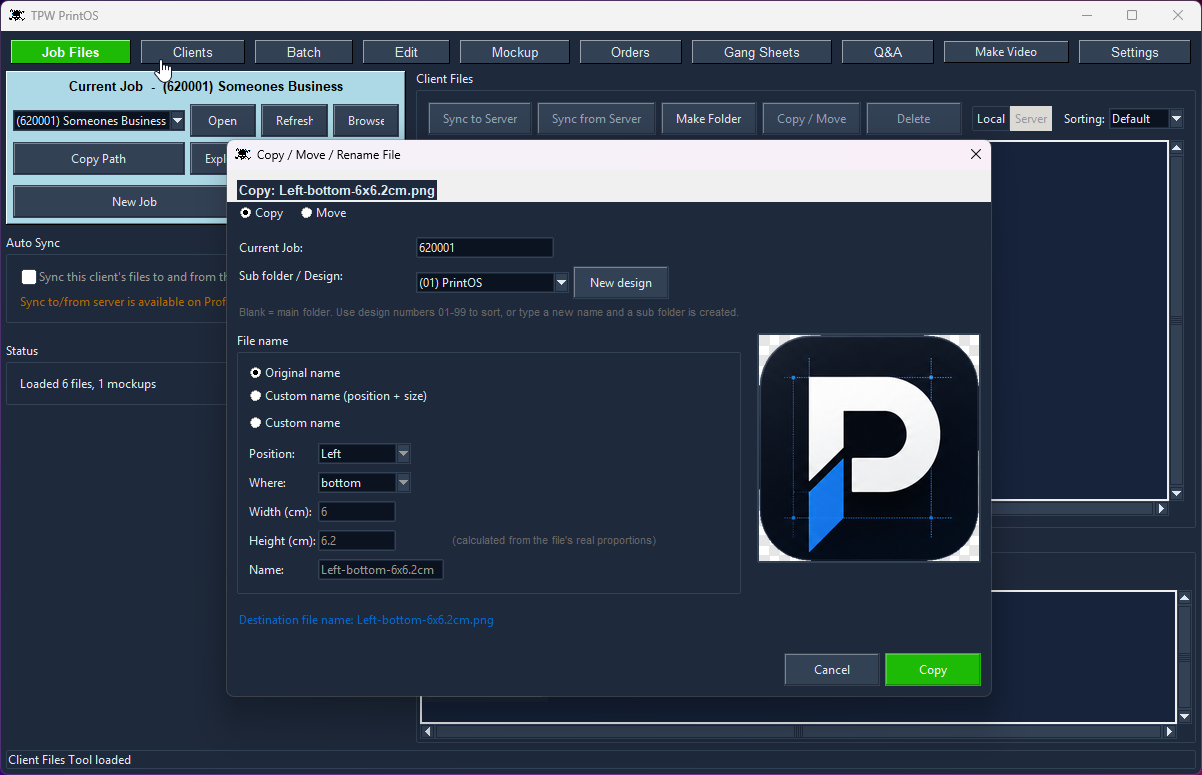
Copy or move a design and let PrintOS name it from the print position and size.
There's no installer to fight with — PrintOS ships as a ZIP containing the program, its folders and some sample files.
Your 30-day trial starts the first time you run it, with every tool unlocked. To update later, just download the newer ZIP.
PrintOS keeps a local database on your machine so you can always keep working, even with no connection.
On Professional and Enterprise, it also syncs over the internet — clients, orders, designs and Job Files — so everyone on your team sees the same data. Sync runs incrementally: only what changed moves.
You control it with an Auto Sync toggle, or push and pull by hand any time.
The local databases are plain, unencrypted SQLite files sitting in your PrintOS folder. Open them with any SQLite tool, back them up by copying the file, or read them from your own code.
Yes. Nothing is locked away.
PrintOS stores your clients, orders and designs in ordinary SQLite databases in its own folder. They're not encrypted and they're not in a secret format — open them with any SQLite browser, query them, or point your own code at them.
So if you want to build your own website, customer portal or reporting system on top of your data, you can. It's your data. Back it up by copying a file, and if you ever stop using PrintOS, you still have everything.
Every design and production tool is in both — gang sheets, mockups, crop, background removal, orders, billing and video.
Professional adds online sync: clients, orders, designs and client files shared between machines through your own database and server. Local Edition keeps everything in its local database on one computer.
Every tool shares one client, so the work flows from one to the next without re-typing anything.
Set your roll width, load the job, and get a print-ready gang sheet — nested tight, with e…
Drop a design onto a garment, pick the style and fabric colour, and send a clean preview —…
Colour remover and a magic wand you tune per RGB channel — click, apply, save. Ready to pr…
Batch-crop a client's entire folder at three sensitivities, or crop by hand with snap-to-c…
Log the job with style, fabric colour and design, fill the full size run, price it from yo…
Pick the clips, tag the client, add music and an outro — then publish to TikTok, Instagram…
Set up the garments you actually sell once — then every mockup, order and bill uses them a…
Open a bill and PrintOS totals the fabric and rib in kilos per supplier, or the shirts and…
Shirts, revenue, cost and profit by month - with fabric kilos, DTF film used and ink cover…
Every tool unlocked, no card, no account. Then buy it once — there's no subscription.